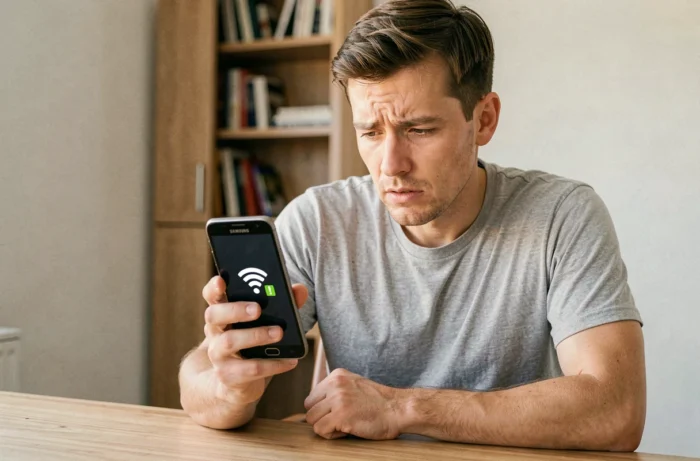
A Galaxy that displays the Wi-Fi icon without a warning triangle but refuses to load any pages is rarely suffering from a hardware failure. The problem is almost always in the software layer, somewhere between the phone’s network settings and the router’s response. Before resetting anything, narrow down the cause methodically.
Private DNS and VPN on Samsung Galaxy: two settings that silently block traffic
The first thing to check when a Samsung connected to Wi-Fi but with no internet won’t load anything is Private DNS. A custom DNS hostname that was entered incorrectly or is no longer reachable prevents domain names from resolving. The phone is connected to the local network, but no requests can get through.
Go to Settings > Connections > More connection settings > Private DNS. If a custom hostname is listed, switch to “Automatic” and test the connection right away. On public networks (hotels, airports), active Private DNS often blocks the captive portal sign-in page, causing exactly this no-internet connection symptom.
An active VPN can have the same effect. Even if it’s disabled in the app, a leftover VPN profile may still intercept traffic. Check under Settings > Connections > More connection settings > VPN. If a profile appears, temporarily remove it to confirm or rule out this cause.
Isolate the problem: the Samsung or the router
Connect a second device to the same Wi-Fi network. If that device also can’t access the internet, the Galaxy isn’t the problem. The issue is with the router, modem, or internet service provider. Restart the router (unplug it, wait thirty seconds, then plug it back in) before trying anything else.
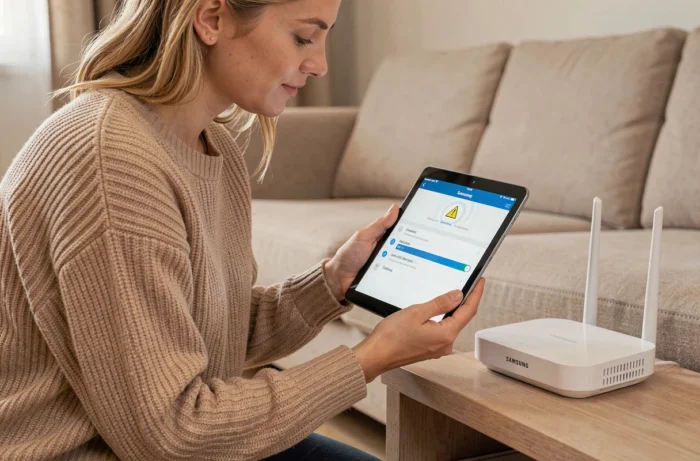
If only the Samsung is affected, check the router’s management app (Livebox, Freebox, Netgear interface, TP-Link, etc.) to make sure the phone’s MAC address isn’t on a blocklist and that network parental controls aren’t filtering its requests. Some routers assign new devices a restricted profile by default.
IP address conflict or expired DHCP lease
A local IP address conflict can cause this behavior on just one device on the network. The Galaxy gets an address that’s already assigned, and the router rejects its packets. Quick fix: go to Settings > Connections > Wi-Fi, long-press the connected network, then tap “Manage network settings” and select “Forget”. Reconnect to force the router to assign a new DHCP lease.
Android and One UI settings to check on your Galaxy
Several settings specific to Android and Samsung’s One UI can cut off internet access while keeping the Wi-Fi connection active.
- Intelligent Wi-Fi/mobile data switch: go to Settings > Connections > Wi-Fi > three-dot menu > Intelligent Wi-Fi and turn this feature off. It’s designed to switch to mobile data when Wi-Fi is unstable, but it can cause repeated brief disconnections instead of stabilizing the connection.
- Power saving mode: power saving mode restricts background network activity and may limit Wi-Fi connectivity. Temporarily turn it off to test (Settings > Battery and device care > Battery).
- Incorrect date and time: a time discrepancy can prevent SSL certificates from being validated. Turn on “Automatic date and time” under Settings > General management > Date and time. A difference of just a few minutes can be enough to block HTTPS requests.
- MAC randomization: on corporate networks or some hotspots, MAC address randomization (enabled by default on newer Galaxy devices) can cause the network’s access controls to reject the connection. Switch to the device’s MAC address for that specific network.
Use Safe mode to identify a problematic app
A third-party app (local firewall, network ad blocker, built-in VPN) may be intercepting all traffic. Starting the Galaxy in Safe mode temporarily disables all third-party apps. If the internet works in Safe mode, an installed app is blocking traffic. Disable apps one at a time to find the culprit, starting with apps that request VPN or network access.
To enter Safe mode: press and hold the power button, then press and hold “Power off” until the “Safe mode” option appears.
Reset network settings on Galaxy: the last resort before a full reset
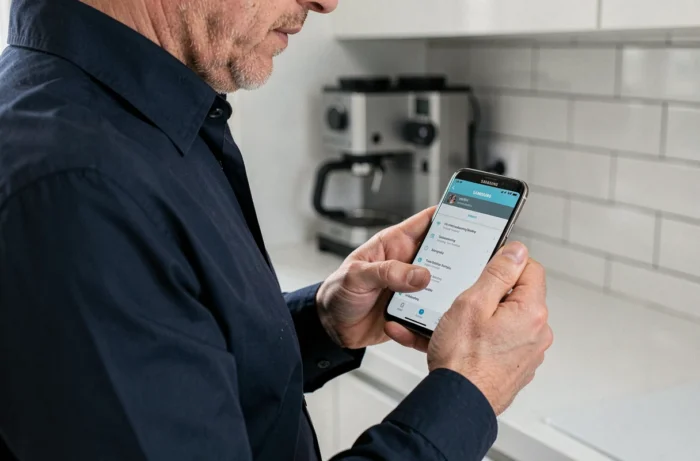
If none of the previous settings fixes the problem, resetting network settings clears all saved Wi-Fi, Bluetooth, and mobile data configurations. Find it under Settings > General management > Reset > Reset network settings.
This won’t delete any files or apps. It makes the phone start fresh with default network settings, clearing corrupted configurations, leftover VPN profiles, and expired DHCP leases in one step.
After the reset, reconnect to Wi-Fi and make sure Private DNS is set to “Automatic”. If the problem persists and other devices work normally on the same network, check whether a One UI system update is available (Settings > Software update). Some network fixes only take effect after restarting following an update.
Troubleshooting always works by elimination. Private DNS, VPN, how other devices behave on the network, and then Safe mode: these four checks identify the cause in the vast majority of cases without affecting the data on your phone.